Explain That Code: Turning a Random Snippet Into an Instant AI Explanation
Introduction
We live in an era where code is everywhere. It appears in tutorials, open-source repositories, documentation pages, Stack Overflow answers, blog posts, and even job interview prep materials. For developers, that is a wonderful thing. For beginners, however, it can also be overwhelming. A single unfamiliar function, an unfamiliar framework, or a clever one-liner can stop a learning session in its tracks.
That is the problem this extension tries to solve.
Explain That Code is a Chrome extension designed to make code easier to understand without forcing the user to leave the page they are already on. The idea is refreshingly simple: highlight a snippet of code, trigger the extension, and receive an AI-generated explanation in a lightweight overlay. In practice, the experience feels almost magical. What makes the project interesting is not just that it uses AI, but that it packages that capability into a browser-native workflow that feels natural and fast.
In this post, we will look at what the extension does, how it works under the hood, where it shines, and where it still has limitations.
What the Extension Does
At a high level, the extension serves as an on-demand code explainer. It allows a user to:
- Select any text on a webpage
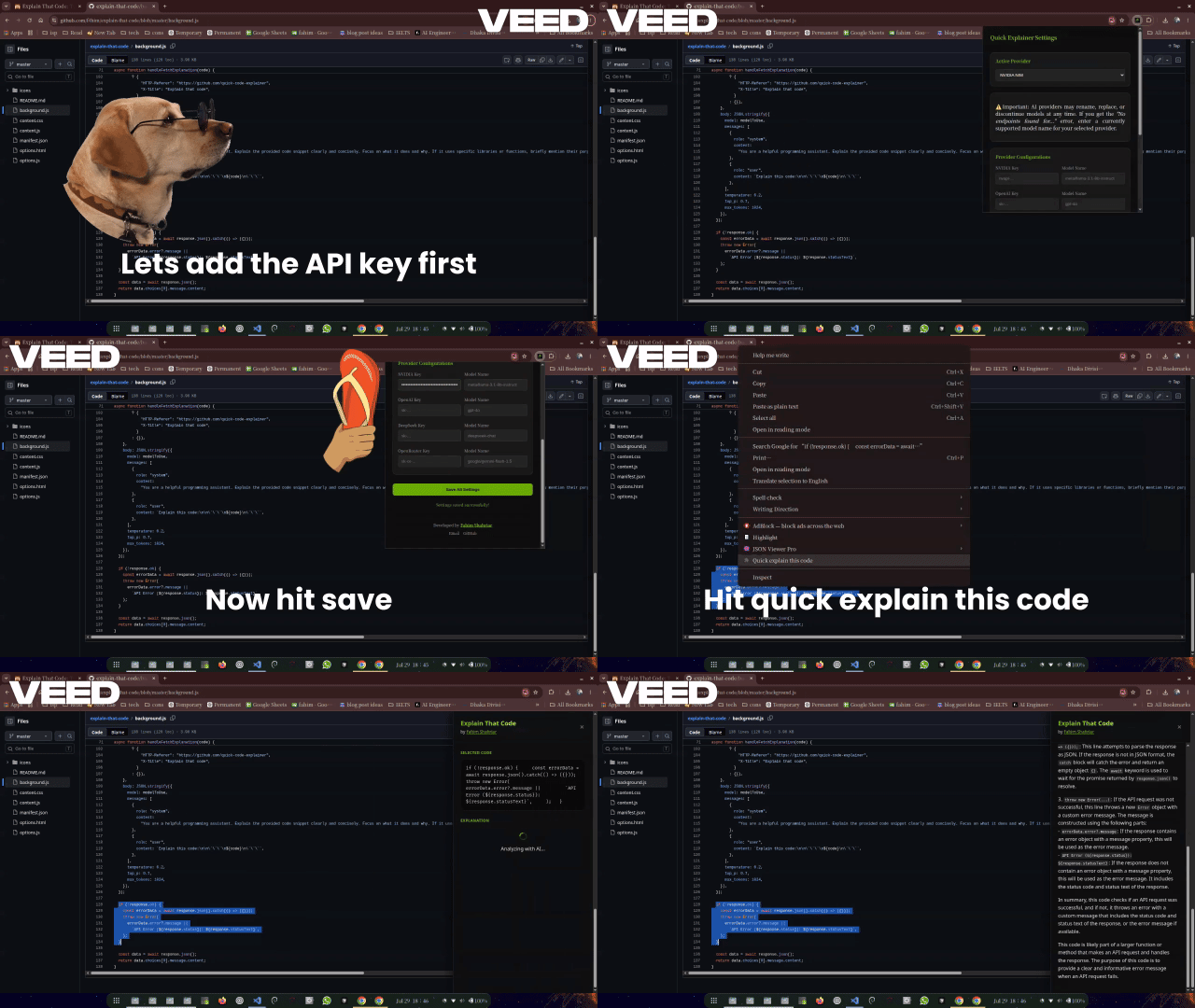
- Right-click and choose a context-menu action
- Send that snippet to an AI model
- View a translated explanation in a side overlay
The key value proposition is speed and convenience. Instead of copying code into a separate chat app, pasting it into an LLM, and then reading the result elsewhere, the user stays in the same context. The code they are reading and the explanation they need are brought together in one place.
The extension is also flexible in a practical way: rather than locking the user into a single AI provider, it supports multiple backends such as NVIDIA NIM, OpenAI, DeepSeek, and OpenRouter. This makes it easy to swap providers depending on availability, pricing, or personal preference.
How It Works
The architecture of the extension is relatively small, but it uses several browser-extension mechanisms very effectively.
1. The Manifest Defines the Extension’s Capabilities
The extension is built as a Manifest V3 Chrome extension. In the manifest, the developer declares a few important capabilities:
- Context-menu access
- Storage permissions
- Active-tab access
- Scripting permission
- Host permissions for AI provider APIs
This matters because the extension is not just a static UI. It has to interact with the current page, inject scripts into it when needed, and send requests to remote APIs. The manifest is what gives it permission to do all of that.
2. A Context Menu Starts the Workflow
The user journey begins with a selection. When the user highlights some code and right-clicks, a custom menu item appears: “Quick explain this code”. That menu item is created in the extension’s background service worker at install time.
Once the user clicks it, the background script sends a message to the active tab. This message contains the selected text and an action identifier. In other words, the extension does not try to interpret the code itself at this point. It simply packages the user’s selection and passes it into the page context.
3. A Content Script Handles the Page Experience
The content script is the part of the extension that actually interacts with the webpage. Its job is to create an overlay UI and display the selected code and the explanation. The overlay is injected into the page DOM as a floating panel, which makes it feel like part of the browsing experience rather than a separate pop-up.
The content script listens for a message from the background script. When it receives the “explainCode” action, it:
- Stores the selected code
- Shows a loading state in the overlay
- Triggers the explanation request
This separation of concerns is important. The background script handles extension-level coordination, while the content script handles the visual experience inside the page.
4. The Extension Sends the Snippet to an AI Provider
The explanation itself is generated by the background service worker, which sends a request to the currently selected AI provider. The extension reads the provider configuration from browser storage, including:
- The active provider
- The API key
- The model name
This design is quite elegant because it decouples the UI from the AI backend. The extension does not care whether the explanation is generated by OpenAI, DeepSeek, NVIDIA, or OpenRouter. It simply uses whatever provider has been configured.
The request payload is straightforward. The extension sends a prompt such as:
- “Explain this code clearly and concisely.”
- “Focus on what it does and why.”
- “If it does not look like code, say so.”
The code snippet is inserted into the prompt and sent to the model along with a few generation parameters like temperature and maximum tokens.
5. The Response Is Rendered Back Into the Overlay
Once the model returns a response, the content script displays the result in the explanation pane. The extension also does some light formatting of the response. For example, it transforms markdown-style formatting into HTML-like presentation, adds bold styling, and wraps inline code snippets in a more readable format. This is a small but meaningful detail because it makes the output feel more polished than raw text.
The result is a two-panel experience:
- One panel shows the selected code
- The other shows the AI explanation
That layout is particularly effective because it allows the user to compare the original snippet and the interpretation side by side.
Why the Design Is Effective
The extension’s design is simple, but it is also well matched to the problem it addresses.
It Reduces Friction
One of the strongest parts of the experience is how little friction there is. Developers do not need to leave the page they are reading or copy code into a separate interface. The action is contextual and immediate.
It Works Across Pages
Because the content script is injected across all URLs, the extension can work on many common web destinations: GitHub, documentation sites, blog posts, Stack Overflow, and more.
It Is Extensible
The multi-provider support means the extension can adapt to changing AI provider ecosystems without needing a full rewrite. If one provider becomes expensive or less reliable, the user can switch to another.
It Feels Like a Lightweight Assistant
Unlike a full IDE plugin or a heavy developer tool, this extension feels lightweight. It does not try to become a full environment. It focuses on one job really well: explaining code at the right moment.
What It Does Well
There are several strengths worth highlighting.
Great for Learning and Exploration
This is an ideal tool for beginners learning a new language or for experienced developers trying to understand a library they have not used before. It helps bridge the gap between “I see the code” and “I understand the code”.
Useful During Code Review
Even for professionals, the extension can be handy during review workflows. If someone is reading a confusing snippet and wants a quick interpretation before diving into a larger file, this tool is efficient.
Flexible and Practical
Because the user can supply their own API keys and select providers, the extension is not dependent on a single commercial service. That makes it more adaptable and more future-proof than a single-provider implementation.
Known Pitfalls and Limitations
As promising as the extension is, it is important to recognize its boundaries.
1. It Depends on External APIs
The biggest limitation is that the explanation quality depends on external services. If an API key is missing, the provider is down, or the model is unavailable, the experience breaks. In other words, the extension is only as reliable as the AI service behind it.
2. It Has Limited Context
The extension explains the snippet the user selected, but it does not know the surrounding file, architecture, or repository context. That means it can misunderstand code that depends on external state or larger application logic. A function may look simple in isolation but be far more complex when placed in context.
3. The Output Can Be Wrong or Overconfident
Large language models are excellent at sounding confident, even when they are wrong. The extension does not verify whether the explanation is accurate. That is a significant caveat for anyone using it for debugging or production-critical work.
4. Privacy Is Not Zero-Cost
The extension sends the selected code to third-party APIs. That is fine for public or harmless code, but it may be risky for proprietary source code, internal tooling, or sensitive business logic. In that sense, the extension is useful, but it is not a privacy-preserving solution by default.
5. The User Experience Is Thin by Design
The overlay is simple and effective, but it is not a full assistant experience. There is no long conversation history, no deep codebase context, no live debugging workflow, and no ability to ask follow-up questions in a structured way. This makes the tool excellent for quick understanding, but less compelling for deep investigation.
6. It Can Be Fragile with Complex Pages
Because the extension injects UI into the page and relies on DOM behavior, there can be edge cases with unusual websites, content-security-policy restrictions, or pages that behave unexpectedly. It is a lightweight tool, but that also means it must be resilient to a wide variety of web environments.
Future Scope
The extension already demonstrates a clear and useful idea, but it also points to several exciting directions.
Better Context Awareness
A strong next step would be to allow the extension to understand more than just a selected snippet. It could use surrounding code from the page, nearby functions, repository structure, or even the full file if the user is on GitHub. That would make the explanations more accurate and less likely to miss important context.
Follow-Up Questions
Instead of treating every explanation as a one-shot interaction, the extension could support a conversational model. The user could ask, “Why is this used here?”, “Can you simplify it?”, or “How would I rewrite this in Python?” That would make the tool feel more like a tutor than a one-pass summarizer.
Local or Private Models
Another major opportunity is support for local models. A privacy-conscious version could run on-device or through a local backend, reducing the need to send code to external APIs. This would be especially attractive for companies and developers working with sensitive code.
More Structured Explanations
The extension could go beyond plain-language explanation and offer structured outputs such as:
- What the snippet does
- Why it is written this way
- Potential pitfalls
- Performance implications
- Security concerns
That would turn the tool from a general explainer into a more useful engineering assistant.
Integration With IDEs and Developer Workflows
There is also a natural path toward deeper integration. The same concept could be expanded into a VS Code extension, a JetBrains plugin, or an internal developer tool that explains code from the editor instead of from a browser page.
Final Thoughts
Explain That Code is a very good example of how a small browser extension can turn a complex developer workflow into something immediate and approachable. It is not trying to replace an IDE, a debugger, or a documentation site. Instead, it improves a very specific part of the developer experience: the moment when someone encounters code they do not yet understand.
Its value lies in the combination of three things:
- The simplicity of the interaction
- The power of modern AI models
- The convenience of staying inside the browser
That combination is powerful, and it points to a broader future where AI tools become less like separate apps and more like invisible assistants embedded directly into the work we already do.
For a project that starts as a simple idea—“explain this code”—the extension is a strong demonstration of how much utility can come from a focused, well-designed feature.